


What is Brightspace?
- Home
- //What is Brightspace?
Brightspace is Brunel Short Courses’ online learning platform. This page gives a brief overview of what it is, how you will access it, and what to expect once you are enrolled.
If you are a current or past Brunel student, please note that Brunel Short Courses uses a separate Brightspace platform. Access details will be provided as part of your course registration.
1. What is Brightspace?
Brightspace is Brunel Short Courses’ online learning environment.
It’s where your course will live once you are enrolled. You can access Brightspace from anywhere with an internet connection, using a web browser or the Brightspace mobile app.
On Brightspace you will find:
- Your course content and learning materials
- Information about your instructor
- Announcements and updates
- Lesson recordings and resources (where applicable)
2. How do I log in?
There are different login routes depending on the type of learner you are.
Brunel Short Courses learners
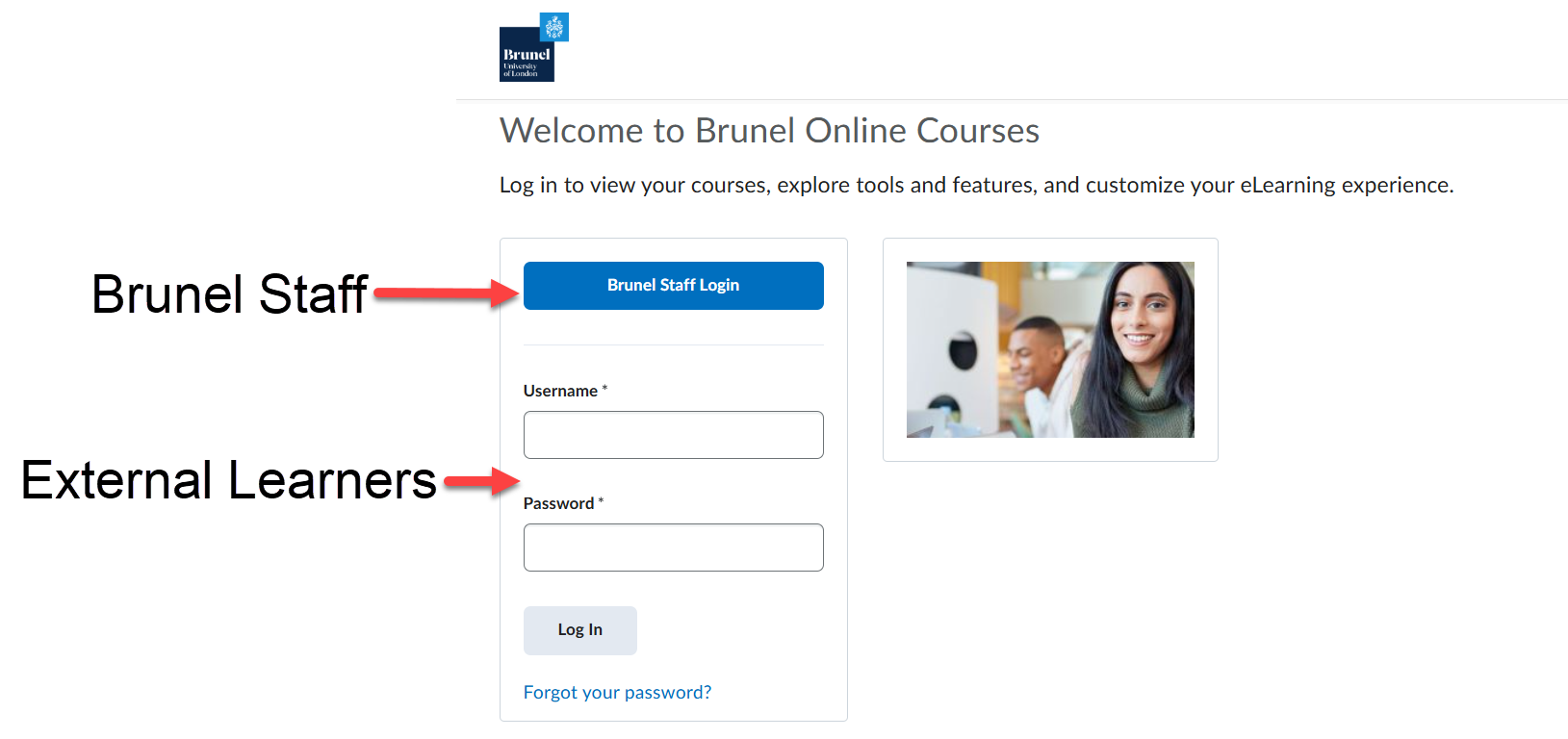
- Do not click the Brunel Staff Login (blue button) on the login page.
- Log in using the username and password provided when your account is created.
If you do not yet have login details, this means you have not completed registration or your account has not been activated.
Brunel staff
- Use the Brunel Staff Login option on the Brightspace login page.
- Log in with your Brunel network email address and Brunel password.
3. What will it look like when I log in?
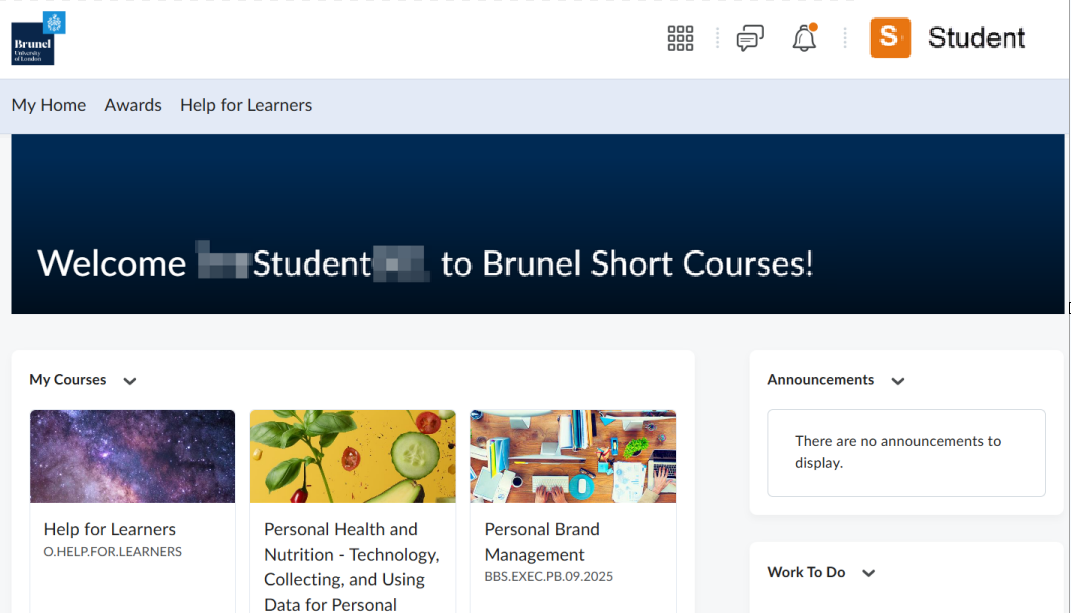
When you log in to Brightspace, you will arrive on the homepage.
From here you will be able to:
- See your available courses under My Courses
- Read any important announcements
- Access help and learner guidance
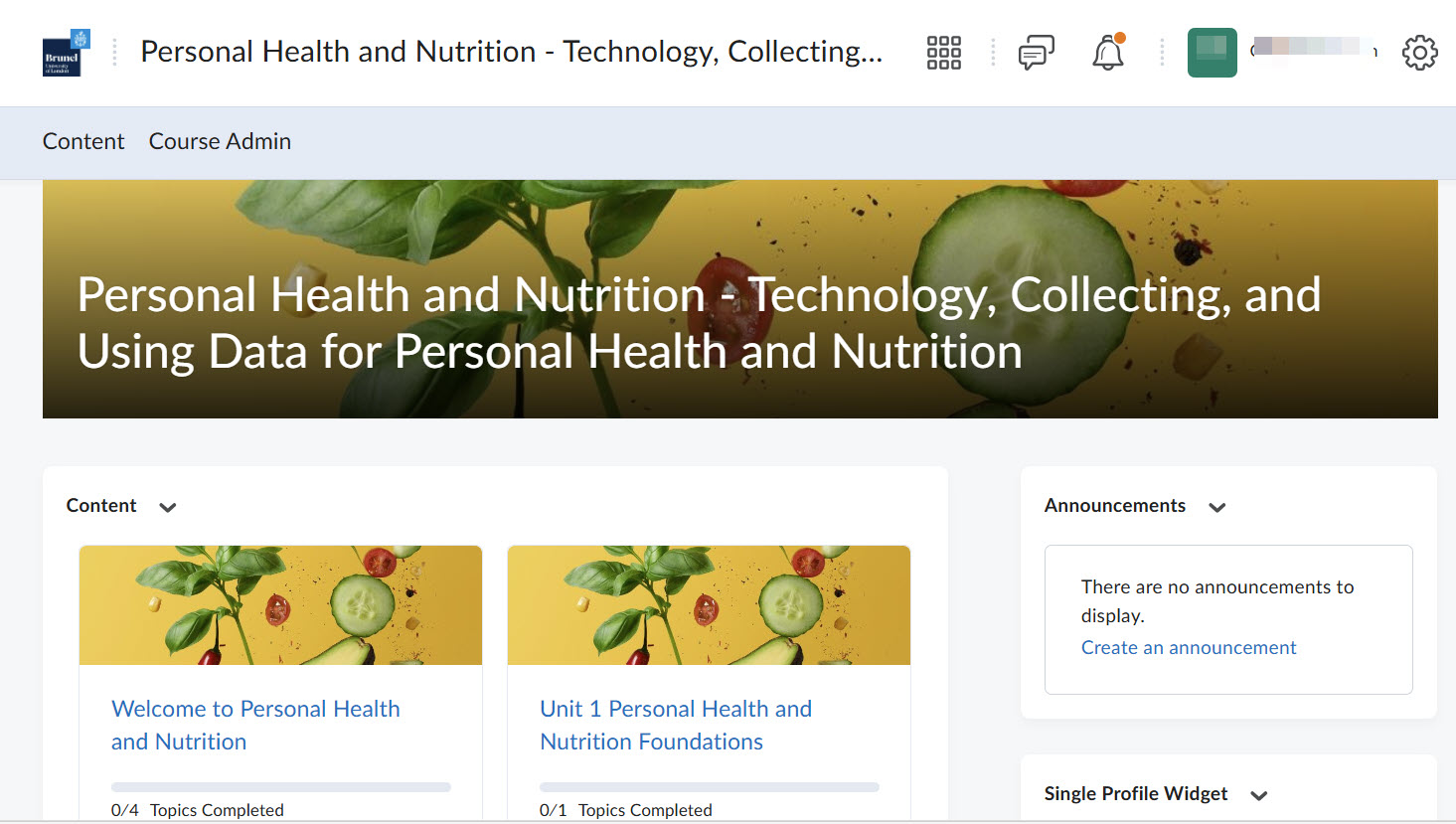
Clicking on a course tile will take you to the course homepage.
Inside a course, navigation menus are used to access:
- Course content and activities
- Learning resources
- Help and support pages
The menu layout is consistent across courses, so once you’ve learned how to navigate one course, the experience will feel familiar.
4. Further guidance once you have access
Once you are enrolled and have access to Brightspace, additional guidance will be available inside the platform, including:
- Help on navigating Brightspace
- Guidance on your profile and notification settings
- Course‑specific instructions from your instructor
These resources are only visible after you have logged in and are designed to support you throughout your learning experience.